A 12 pt Grid Shapes Juan ePrint Shop’s InDesign Product Catalog Template
- Project
- Graphic Design
- Drawn by
- Dirk Petzold
- Issued
- Sheet
- A-32
Juan ePrint Shop’s letter size catalog pairs a 12 pt baseline with repeatable product modules. Here’s where the system works—and what to check before printing.
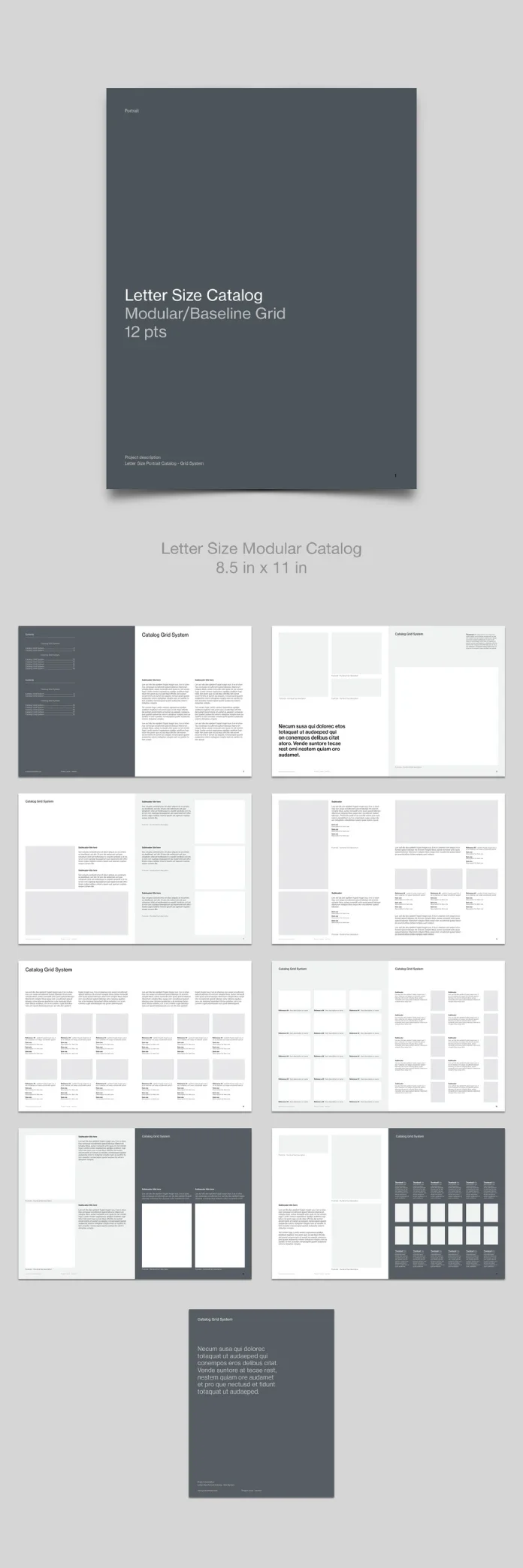
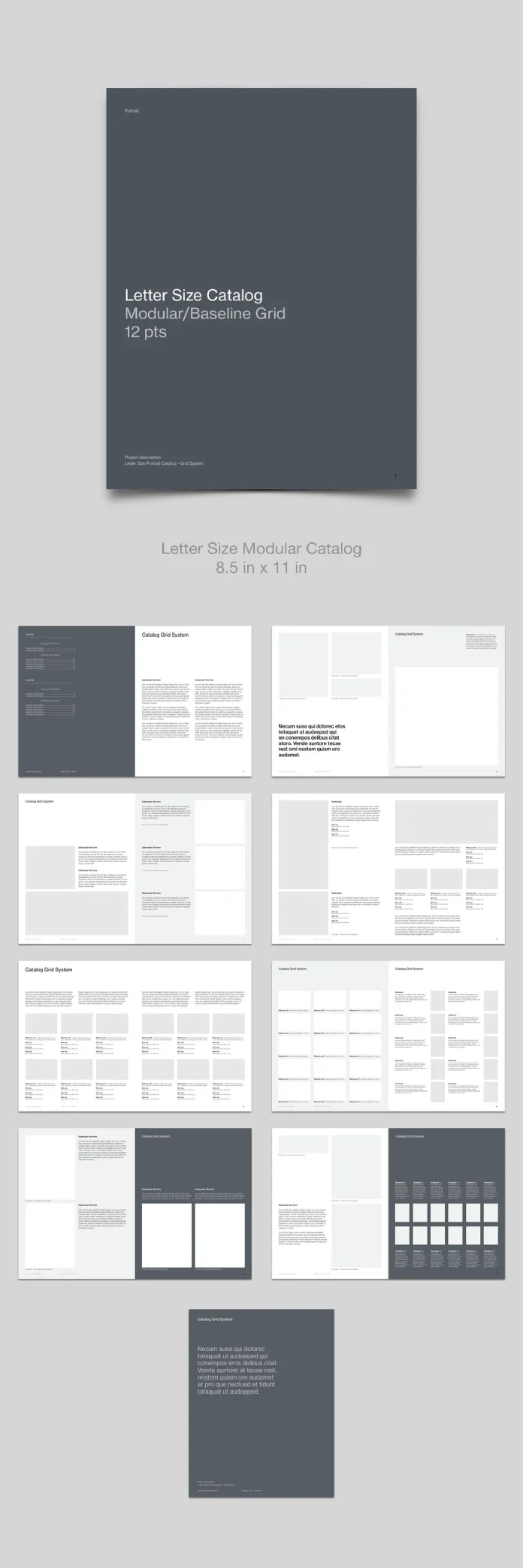
The most useful detail on Juan ePrint Shop’s product catalog template is printed on its cover: “12 pts.” That small specification tells designers how the pages are meant to hold together. The letter size InDesign file uses a shared baseline and repeatable image and caption modules, giving changing product ranges a consistent structure.
Juan ePrint Shop, an Adobe Stock contributor, designed the template for print. The listing describes it as CMYK and print-ready. Its previews show a cover, eight spreads and a back cover, with white, light gray and slate gray backgrounds. The file requires Adobe InDesign; the source points users to the InDesign product page and Creative Cloud for the software.
View the template on Adobe Stock.
Repeatable modules, changing density
Each module holds an image and caption. Modules can combine into larger frames or shrink into thumbnails, so a page can accommodate a hero product, a family of related items or a dense run of variants. That flexibility suits manufacturers and distributors that update their ranges while needing their catalog pages to read as one system.
The page is US letter size, 8.5 by 11 inches, portrait. At 792 points tall, it divides into 66 steps of 12 points before margins; the width offers 51 such steps. Those increments give the designer a practical alignment unit for type and layout. The template’s previews move from a restrained contents page to a feature spread with a pull quote and large image, then into denser product groupings.
The density builds without changing the margins. A six-up spread uses three columns and two rows on each page. The final slate page packs twelve thumbnails into six columns. This progression gives the catalog room to shift from introduction to comparison and overview while keeping a stable framework.
Alignment depends on real copy
In the six-up example, neighboring captions begin on shared 12 pt baseline lines. That alignment helps readers scan across the spread. Product names will put the system under pressure, though: a long name can wrap and push its details out of sync. Set caption frames to a consistent height, and check how wrapped lines behave before filling the whole catalog.
The preview captions include a reference line plus short item and size details, but no dedicated price field. Retailers building a wholesale list will need to add one and check whether it fits the module without squeezing the other information. The sample copy is Latin filler, so expect to adjust frames once actual descriptions replace it.
The type appears to be a Helvetica style grotesque, but the preview does not identify a typeface. Confirm the font before editing. If InDesign substitutes a missing font, line lengths and breaks may change, disrupting the baseline alignment that the design depends on.
Backgrounds and image testing
White and light gray pages alternate with slate gray accents. Slate anchors the contents page and thumbnail wall, giving the sequence a visual pause while the modules remain consistent. Since a large dark page can use substantial ink, ask the printer about total area coverage and request a press proof before production.
Neutral gray placeholders make the grid easy to inspect, but they don’t show how real photography will sit in the frames. Test representative product images early, especially if the range includes varied shapes or image crops. The layout appears best suited to a consistent image ratio; mismatched crops may make otherwise regular modules feel uneven.
Editing the template
- Install the required fonts before opening the file.
- In InDesign, choose View, then Grids & Guides, then Show Baseline Grid to inspect alignment.
- Place images in the existing frames and choose Object, Fitting, Fill Frame Proportionally.
- Use the Paragraph Styles panel to update captions consistently instead of editing them one by one.
- Set new color swatches in CMYK before adding brand colors.
- Run Preflight, then export a PDF/X file using the printer’s preset.
Confirm bleed and slug settings with the printer as well. A listing that describes a file as print-ready doesn’t establish the settings required for every production job. For baseline consistency, keep leading at 12 or 24 pt, snap captions to the grid, and resize frames in whole modules. At 14 pt leading, each line advances two points beyond the 12 pt rhythm, allowing misalignment to build down the page.
Where the layout fits
The template’s spread types cover a range of catalog tasks: a low density contents and introduction for navigation and a short brand statement; a feature spread for one hero item; mixed text and image pages for product families; and dense six-up or reference pages for variants, size ranges and specification-heavy items. A slate showcase gives two tall images more room, while the thumbnail wall offers a compact overview of the range.
That makes the template a plausible fit for small businesses with substantial inventories and consistent photography. It can also serve as a starting point for a wholesale catalog, provided the designer adds pricing information. Teams with products that need long descriptions or editorial storytelling may find the thumbnail-led structure restrictive; a layout with more room for prose would suit that material better.
The design’s restraint is functional. Repeated locations for images, names and specifications teach readers where to look, which can speed up comparison across a large range. Its strength depends on treating the grid as a working system: test the actual copy, imagery, font files and print settings before committing every product to the page.
| Rev | Description | Date |
|---|---|---|
| A | Issued for reading | |
| B | Viewed 567 times | Current |