E-Type’s Black-and-White InDesign Portfolio Template Puts Color Work in Focus
- Project
- Graphic Design
- Drawn by
- Dirk Petzold
- Issued
- Sheet
- A-26
E-Type’s 16-page InDesign deck gives color work a stark frame, with generous image areas and practical fixes needed for type and navigation.
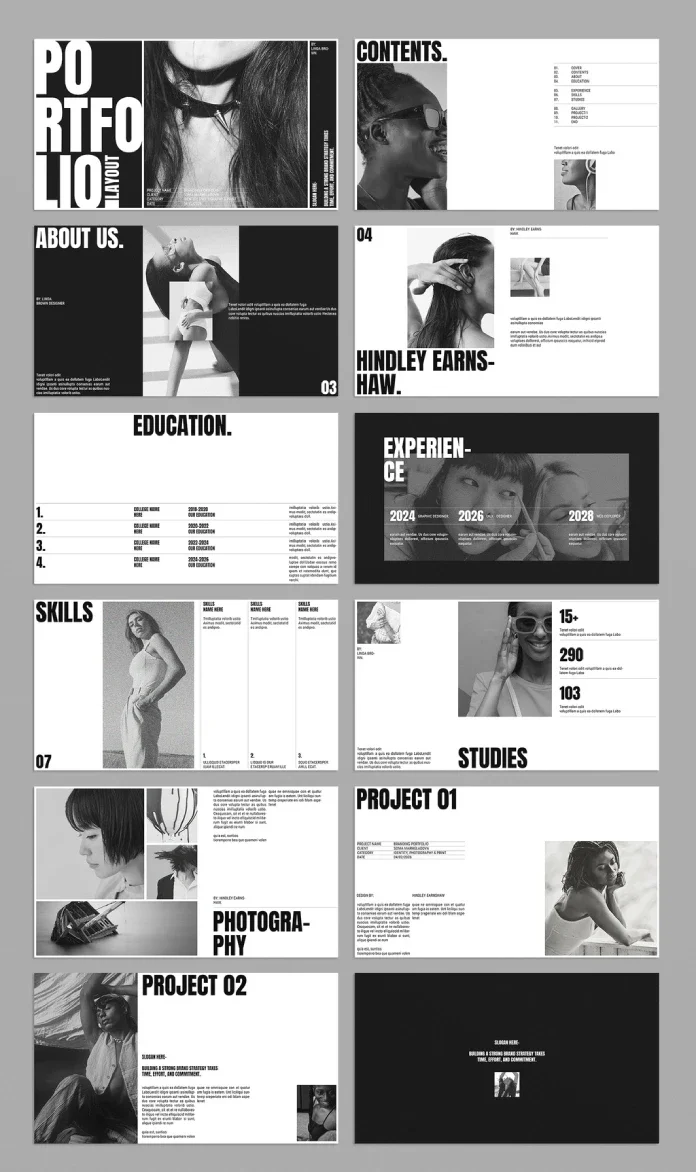
A monochrome portfolio can make color work more vivid. E-Type’s Adobe InDesign brand portfolio template uses black and white as a neutral frame, giving photographs and graphics room to lead. Its 16:9 pages are built for screen presentations, and many give a single image enough space to carry the story. The trade-off is a forceful typographic voice, small project copy and a few details that need correcting before a presentation.
The template is listed on Adobe Stock and requires Adobe InDesign. Its 16 customizable pages measure 1920 × 1080 px. Preview photography is for display only and isn’t included in the download, so you’ll need to supply your own work. The source says the template can be downloaded for free with an Adobe Stock trial subscription.
View the template on Adobe Stock.
A 16-page framework with distinct roles
The available preview shows 12 layouts, while the listing describes a 16-page file. That distinction matters: the visible pages give a useful sense of the template’s structure, but they don’t show every page in the download.
The cover makes its attitude clear. Large white capitals spell “PORTFOLIO” across a black panel, with “LAYOUT” set vertically nearby. A fashion photograph occupies the center, a narrow slogan strip runs along the right edge and a small block at the bottom holds project details. Five elements compete for attention. For a presentation that needs an immediate, loud opening, that density may fit; work that calls for a quieter introduction could benefit from simplifying the page.
The contents page takes a more measured approach. Eleven entries sit in three groups separated by rules. Two portraits anchor the left side, while open space at lower right gives the list some breathing room. The profile layouts continue the mix of image and text: an About page pairs a black panel with a large image and a smaller inset, followed by a portrait beside an oversized name.
Education is the most restrained page in the preview. It uses no image, relying instead on thin rules and large numerals to organize four entries. Each row has a college name, a year range and a text block. Experience shifts back to a dark background, with a wide photo band above three timeline columns containing dates and job titles.
The five remaining work layouts use a repeated formula: image space alongside a compact text block. The Studies page adds three large numerals for project figures. The final page returns to a black field, a single slogan line and a small thumbnail. Reusing the cover’s placeholder slogan creates a simple closing beat.
How the monochrome pages handle color
Black and white doesn’t limit the work to monochrome images. It gives color photography and graphics a controlled setting, so a saturated image can become the page’s main visual event. The layout is most effective when one image takes the lead and the surrounding elements stay quiet.
To assess that quality, the review uses a Chroma Readiness Score (CRS), a 15-point measure made from three scores worth up to five points each. It’s an editorial rating of the layouts visible in the preview, not a feature of the InDesign file.
Ink Budget: 3 of 5
Four of the 12 preview pages have dark backgrounds: the cover, About, Experience and closing pages. The other eight are white. That ratio gives the sequence some contrast, but pages 7 through 11 are all white, including skills and project content. Color images could use a dark ground there to stand apart. Turning the Project 02 page black is one suggested adjustment that would improve the sequence.
Landing Zones: 5 of 5
Ten of the 12 visible layouts have a frame large enough for one image to dominate. Education has no image area, and the closing page offers only a small thumbnail. On the Photography page, the main image space is split into four frames, which makes it better suited to a mood board than a single hero image.
Break Debt: 3 of 5
The preview shows three mid-word breaks in display headlines: “EARNS-HAW,” “EXPERIEN-CE” and “PHOTOGRA-PHY.” The condensed, heavy headline style leaves little room for long words. The review compares the look to Impact, drawn by Geoffrey Lee for Stephenson Blake in 1965. Shorter headings such as “Work” may fit cleanly; longer client or project names may need a smaller size or a manual line break.
Together, the scores give the template 11 out of 15. Its image areas are a clear strength, while the display type and page-to-page balance need attention.
| Measure | What it assesses | Score | Evidence in the preview |
|---|---|---|---|
| Ink Budget | Balance of dark and light pages | 3 of 5 | Four dark pages, with none among the work pages |
| Landing Zones | Frames where one image can lead | 5 of 5 | Ten of 12 pages have a dominant image area |
| Break Debt | Word breaks in display headlines | 3 of 5 | Three mid-word breaks are visible |
| Chroma Readiness Score | Total across the three measures | 11 of 15 | Strong image framing; limited headline flexibility |
For a cohesive deck, give each page one dominant hue family and match accent colors to the identity being presented. Two equally saturated images on a spread can compete, so choose which one should lead. Flat graphics also preserve the sharp transition between the image and the black or white ground, one of the template’s most effective visual details.
Details to check before presenting
A review of the preview identifies a few practical issues to fix in the working file. First, the contents list and page folios don’t agree. Education is listed as page 04, while the profile page already carries folio 04. Skills appears as 06 in the list and 07 on its own page; the contents list is one page behind from Education onward.
The pages also contain placeholder names: Linda Brown, Hindley Earnshaw and client Sonia Marmeladova. Search for each name with InDesign’s Find/Change feature and replace it before exporting. The dates need the same attention. Experience shows 2028, and the cover shows 04/02/2026. The source flags both as placeholders to overwrite.
Headline fit deserves a page-by-page check after your copy is in place. The sample breaks won’t predict where your names and titles will wrap. Long names may need a smaller point size or a manual hyphen. The review also tested saturated photographs in the dominant frames: the page fields stayed black or white, leaving the inserted images to carry the color.
A look that mixes editorial restraint with display type
Cropped portraits and broad white margins recall Alexey Brodovitch’s pages for Harper’s Bazaar, where he was art director from 1934 to 1958. The resemblance comes through in the image framing and open space. E-Type’s oversized capitals take the work in a louder direction, closer to a streetwear lookbook than to the restrained type in Brodovitch’s editorial pages. That tension gives the portfolio a strong character, though it won’t suit every body of work.
Presenting the 16:9 deck
The 1920 × 1080 px format suits screens. One option is to export an interactive PDF from InDesign and open it in Acrobat’s full-screen mode: use Ctrl+L on Windows or Cmd+L on Mac. Text remains sharp and searchable. For a deck in PowerPoint, Keynote or Google Slides, export each page as a PNG or JPEG at 1920 × 1080 px. Images preserve the page appearance, though text becomes pixels and links and search won’t carry across.
For a video call, share the PDF in full-screen mode or record a screen presentation with spoken commentary. On a laptop, small body text may be hard to read. Conference room screens and projectors can display 1920 × 1080 px, but viewing distance makes small copy difficult there too. Adjust the body size for the room or screen before presenting.
A short preflight for a clean handover
- Replace the placeholders. Use Find/Change for the sample names and review the contents list against the page folios.
- Place your images. Select a frame and press Ctrl+D on Windows or Cmd+D on Mac to insert an image.
- Check the Links panel. Confirm that placed images are available before exporting.
- Review the type at presentation size. Increase small body copy for the screen and test it from the audience’s likely viewing distance.
- Export and inspect. Choose an interactive PDF or page images, then open the exported file to check the result.
Where it fits—and where it doesn’t
Photographers and brand designers are natural users: the large frames and neutral fields let image-led work carry the presentation. The horizontal format can also work well for freelancers pitching over video calls. The template asks for enough InDesign experience to replace assets, adjust type and correct the contents.
Work with a quiet visual register may be overwhelmed by the heavy capitals. The narrow columns also leave limited room for long case studies. Project pages use small, caption-like copy, which reads more comfortably on a nearby laptop than from across a room. The busy cover and the run of white work pages are editable, so both can be addressed without changing the underlying grid.
See E-Type’s portfolio template on Adobe Stock.
The preview points to a useful rule for monochrome portfolio design: strong image frames can make color work read clearly, but the surrounding page still needs to support it. Before presenting, balance the dark and light pages, check headline breaks and set body copy for the actual screen and viewing distance.
| Rev | Description | Date |
|---|---|---|
| A | Issued for reading | |
| B | Viewed 635 times | Current |