RedGiant’s Minimal InDesign Business Card Template Keeps the Focus on Type and Print
- Project
- Graphic Design
- Drawn by
- Dirk Petzold
- Issued
- Sheet
- A-20
RedGiant’s 3.5 × 2-inch InDesign template starts spare. A practical preflight, type and paper checks can make that simplicity print well.
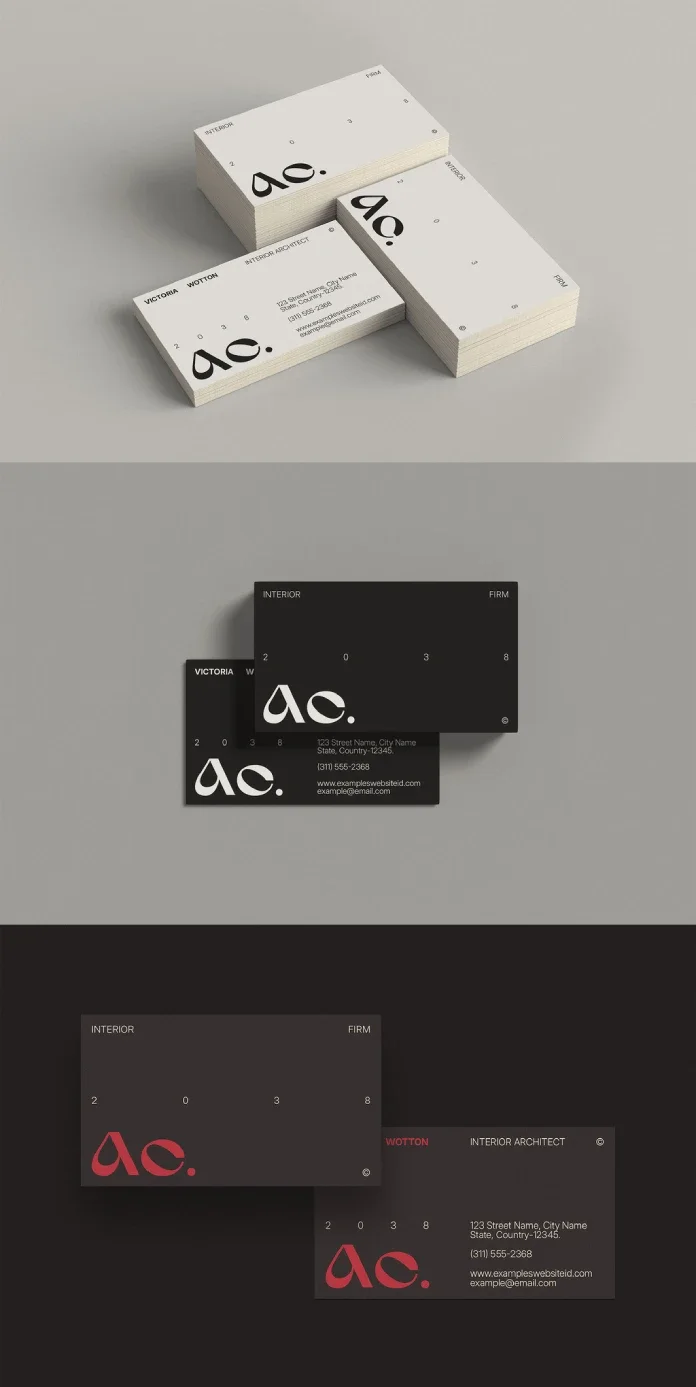
RedGiant’s business card template makes a useful point through restraint: on a card measuring just 3.5 × 2 inches, every extra detail competes with a name and a way to get in touch. The Adobe Stock file is designed for Adobe InDesign, and its minimal layout offers a clean starting point. The design still depends on the choices you make after opening it: type hierarchy, spacing, paper and print setup all need attention.
A card is read quickly, often alongside a person’s online profile or a QR code. That gives a spare layout a practical advantage: contact details can be found without decoding a crowded arrangement. But empty space doesn’t fix weak typography. With fewer elements on the page, each one carries more weight.
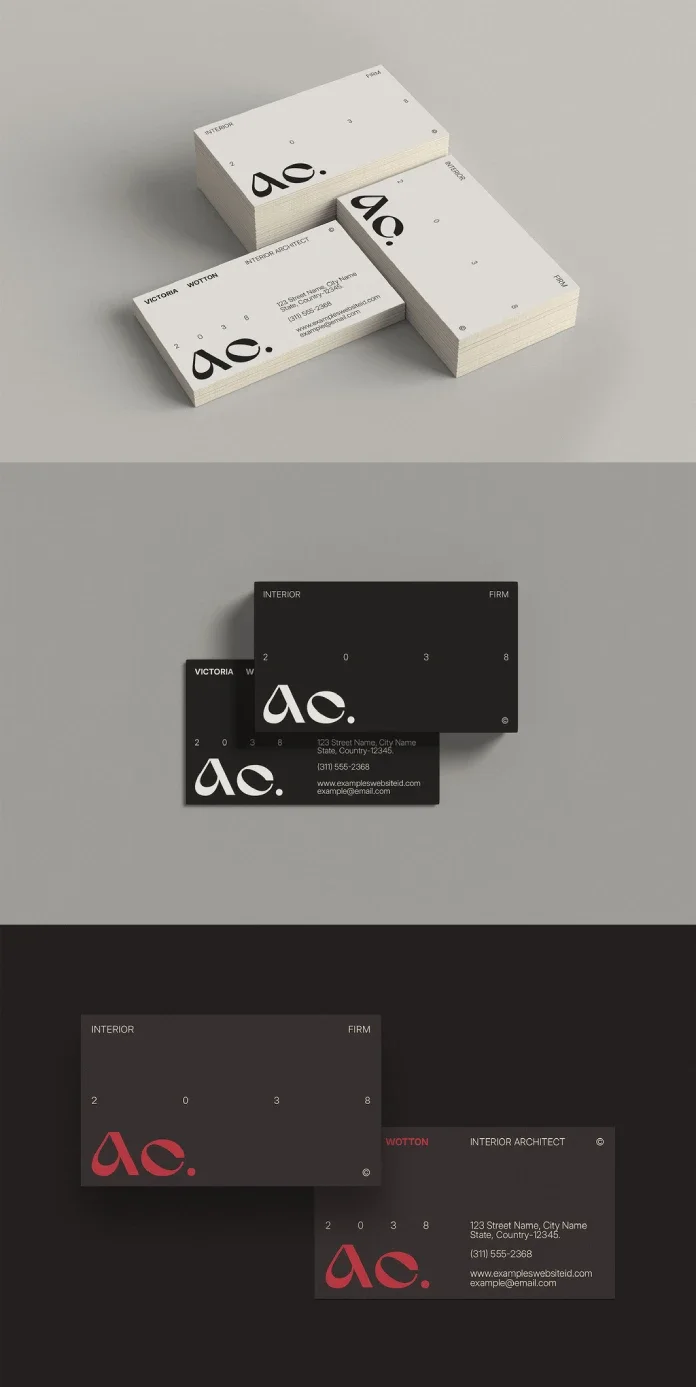
The template’s Adobe Stock title is “Clean, Minimalist and Professional Business Card Design.” It’s credited to RedGiant and described as editable in InDesign. The file requires Adobe InDesign; Adobe’s Creative Cloud page has the current version information. Check the Adobe Stock page for the file and its license terms.
Start with the trim and printer requirements
The finished card measures 3.5 × 2 inches, or 252 × 144 points in InDesign. The small format leaves little room for accidental crowding, so treat the printer’s specifications as part of the design brief. A common bleed is 0.125 inches on each side, which makes the document 3.75 × 2.25 inches including bleed. Confirm the required amount with your printer before preparing the file.
Keep live text at least 0.125 inches inside the trim edge. This inset protects names and contact details from slight cutting shifts. A card can have correct dimensions and still print poorly if important type sits too close to the edge.
Give the name the first read
Design the information for two quick passes. The first should make the person’s name easy to spot; the next can offer a role and contact method. Make the name larger or heavier than the supporting details, then keep the secondary type calm and legible. The template’s open layout gives you room to set that hierarchy, but it won’t make the decision for you.
For contact lines, the source recommends a clean sans serif at 7 to 8 points. Check that size on paper, especially if the chosen typeface has delicate strokes or the card will use uncoated stock. Fine details that appear clear on a magnified screen may be harder to read in hand. Test your actual wording, too: a long name or job title can force awkward breaks even when placeholder text fits.
Check the file before replacing its layout
How much editing a template needs is a useful measure of its practical value. If you can replace the logo and text, adjust a few details, and make a sound proof, the file saves time. If fonts are missing or spacing needs rebuilding, the design’s apparent simplicity may not carry through to production.
In InDesign, open Type and choose Find Font to check for missing typefaces. Then inspect the Layers panel. Clearly named layers that separate text from artwork make the file easier to edit; locked or unnamed layers can slow down basic changes.
Replace the placeholder copy with the longest name and job title you expect to use, and inspect the line breaks. Check Paragraph Styles as well. When styles are set up, a change can update every line that uses them. With manual formatting, each text line may need individual attention.
Proof at actual size
Before export, open InDesign’s Preflight panel and review its warnings. Export a PDF with crop marks and the bleed your printer requested. PDF/X-4 is accepted by many printers, but ask which PDF settings they prefer instead of assuming one preset will fit every job.
Print a copy at 100 percent on office paper, cut it to size, and compare it with a card you already carry. This simple proof reveals type that feels too small, crowded edges and contrast that looked different on screen. Judge the card at its real scale, not at high zoom.
Let one detail carry the distinction
Minimal layouts expose small mistakes. On a busier card, extra elements can distract from uneven spacing or weak type choices. Here, those problems have nowhere to hide. Paper matters just as much: a restrained design on thin stock can feel flimsy, so consider the suggested 16-point stock before adding ornamental flourishes.
A single accent color can help a familiar format feel specific. The source’s “One-Accent Rule” is to choose one color and use it once against black type on white stock. For example, #D94F30 gives the palette a clear focal point. Keep the accent tied to a meaningful element, such as a small mark or rule, rather than adding color simply to fill space.
The layout should also leave room for the contact method the person actually uses. A QR code may suit some cards, while a short list of services may matter more for others. The right content depends on the work: consultants and designers may need only a few details, while some trades need additional space to describe their services.
RedGiant’s template is a starting file, not a finished print solution. Match its dimensions to the printer’s requirements, test real copy, inspect the InDesign structure and hold a paper proof at actual size. That process lets the minimal layout do its job: make the essential information quick to find.
Find more graphic design templates in WE AND THE COLOR’s reviews.
| Rev | Description | Date |
|---|---|---|
| A | Issued for reading | |
| B | Viewed 396 times | Current |