Tom Sarraipo’s InDesign Pitch Deck Template Puts Photography First
- Project
- Graphic Design
- Drawn by
- Dirk Petzold
- Issued
- Sheet
- A-19
This 17-page, 16:9 deck gives visual studios a clear structure, but its photos aren’t included and its financial slides need more detail.
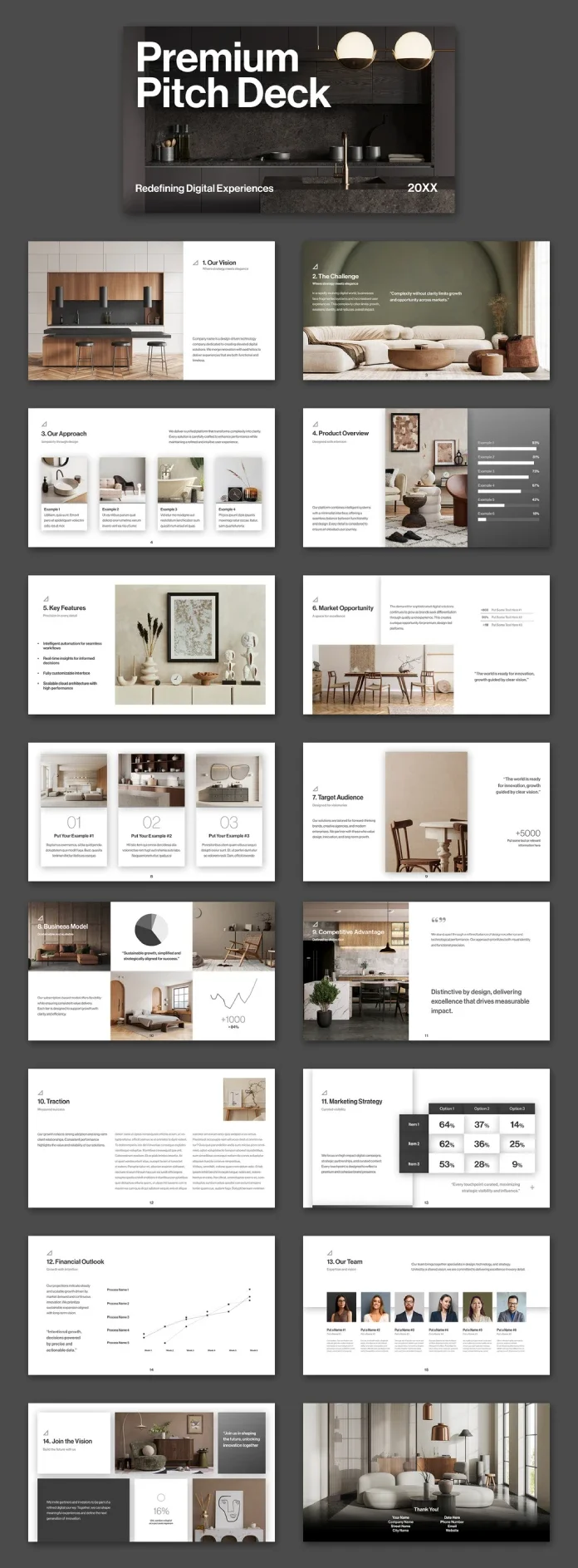
Tom Sarraipo’s 17-page InDesign pitch deck template is built around a clear trade: it gives studios a polished visual structure, while asking them to supply the photography that carries much of the design. The Swiss-born graphic designer and Adobe Stock contributor made the file at 1920 × 1080 pixels, a 16:9 format for screen presentations. Preview images show the intended mood, but they aren’t included in the download.
That makes the template a stronger starting point for an interior, product or branding studio than for a business whose case depends on dense financial evidence. Its layouts make room for images and concise statements. Several data pages are present, but they don’t provide the depth a finance-led pitch requires. My read: the file earns its keep when you have strong visual material and want to spend less time building a deck’s basic structure.
A familiar pitch sequence, with one numbering snag
The deck opens with a two-line title, tagline and year placeholder, then moves through 14 numbered sections, from “Our Vision” to “Join the Vision.” A final “Thank You” page closes the presentation, with contact details left as placeholders. The sequence covers the usual ground: the challenge, approach, product, audience, business model, traction, marketing, financial outlook and team.
One extra, unnumbered page follows “Market Opportunity.” Its three columns are labeled 01, 02 and 03, and its position shifts the numbering that follows. “Vision,” for example, is section 1 on page 2; “Target Audience” is section 7 on page 9. Check every section label against the actual page order before exporting. It’s a small production task, but a numbering mismatch can make a presentation feel less considered.
The page designs mix full-bleed photography, image grids, text columns and simple charts. “The Challenge” uses a full-page photo with a pull quote. “Our Approach” gives four image cards, while “Key Features” pairs a photo with four bullets. The team page has six portrait slots, and the closing page combines a photo collage with a call to action. This is a useful scaffold for a studio credentials deck as well as a startup pitch.
Type and layout need a screen-distance check
The typography has a neo-grotesque feel in the Helvetica tradition: plain, neutral and unlikely to compete with the images. The cover’s large, tightly set title establishes a strong entry point. Inside, however, the section headings appear much smaller by comparison. Increasing them by roughly a third would help carry the cover’s sense of hierarchy through the rest of the deck.
Body text deserves an even closer look. It appears small in the preview, particularly on “Traction” and “Our Team.” A presentation that reads comfortably on a laptop may become difficult to follow across a meeting room. Check each page at the size and distance you expect to present, then enlarge the copy until it remains legible from the back of the room.
The grid itself is dependable. Most pages divide content into a text area and an image area, with white backgrounds doing most of the work. Dark gray panels and an olive-green photo page add contrast without changing the overall rhythm. That simplicity should make it easier to replace sample content while keeping the deck coherent.
Plan for images before you start editing
Photography is the largest practical commitment. Fifteen of the 17 page previews contain a photo, giving the template a Photo Dependency Ratio of 88 percent. That figure is a useful way to compare presentation templates: count the pages that rely on photography, then ask whether you can supply images of similar quality and visual consistency.
Here, the preview photos are display only. You’ll need to source your own images, and the time spent finding and preparing them may exceed the time spent adjusting the layouts. The full-bleed “The Challenge” and “Thank You” pages are especially dependent on strong image choices; prepare images at least 1920 pixels wide for those placements. Treat the preview as a mood reference, not as a promise about what comes with the file.
The deck also contains sample figures that could be mistaken for real data. “Target Audience” includes +5000, and “Join the Vision” shows 16%. Search the file for plus signs and percentage symbols before sharing it. Labels such as “Put Your Example #1” and “Process Name 1” read clearly as placeholders; plausible-looking figures need more deliberate checking. Replace each with a verified value or remove it.
Data pages are starting points, not financial models
Four pages make room for numbers. “Product Overview” has six horizontal bars with sample values ranging from 93% to 18%. “Business Model” combines a pie chart and a line chart. “Marketing Strategy” presents a 3 × 3 percentage table, while “Financial Outlook” pairs a line chart with five process labels across six weeks.
The bars and percentage table give figures enough space to scan quickly. The pie chart, by contrast, is small enough to read more like an icon than a useful comparison. The financial page is the weakest data layout: a line without y-axis values can’t explain the assumptions behind a funding request. Build the detailed model separately and use this page for a headline view.
Before committing to the charts, check whether they’re native InDesign objects or placed artwork. That determines how easily you can update figures when the numbers change. A quick editability check is especially useful if you’re promising a client a fast revision cycle.
A practical customization order
Working through the deck in sequence can prevent avoidable rework:
- Apply the brand system. Update the colours and replace the small triangle mark with your logo before rewriting the content.
- Gather the photography. Prepare images for both the full-bleed pages and the smaller image frames, checking crops as you place them.
- Rewrite the section headings. Turn generic labels such as “Our Vision” into specific claims. People often skim headings before they read supporting copy.
- Correct the numbering. Check the section labels against page order, including the unnumbered three-column page.
- Remove sample figures. Replace each plausible placeholder with a real figure or delete it, then check the charts for editable data.
- Export for screen. In InDesign, choose File, then Export, and select Adobe PDF (Interactive). Full-screen mode and page transitions are available if they suit the presentation.
The first content change I’d make is to “The Challenge.” Its sample pull quote risks sounding interchangeable with a pitch from any other company. A precise claim can give the image a reason to be there and make the page easier to remember.
Choose a presentation format to suit the room
An Interactive PDF opened in Adobe Acrobat is the most direct route when you want the InDesign layout and fonts to stay intact. Press Ctrl+L on Windows or Cmd+L on Mac to enter full-screen mode. For a client who needs speaker notes or insists on using a slide app, export each page as a JPEG or PNG and place the images into Keynote or PowerPoint. That preserves the design but turns the text into images.
For a video call, share the PDF in full-screen mode. The 16:9 pages fit the shared window without cropping, and you can send the PDF afterward so viewers can zoom in. Since the body text is small in places, a follow-up file gives people a closer view than the live presentation may allow.
Who gets the most from this template?
Interior and product-design studios are a natural fit: the sample imagery leans toward warm wood and soft textiles, and the layouts give visual work space to lead. Branding agencies could adapt the six-person “Our Team” page for a credentials presentation. The deck’s startup language may need rewriting, but the underlying sequence gives a small team a useful first structure.
For a finance-heavy pitch, the limited chart space and image-led approach mean more redesign work. Compared with a default PowerPoint or Keynote theme, this file offers more control over type and grid, at the cost of sourcing photos and editing in InDesign. A Canva template may be quicker to set up, with less typographic control; a custom studio deck offers more freedom but takes longer to produce.
Sellers could make image requirements clearer by showing photo-free previews, while template makers could use unmistakable placeholders such as “XX%” instead of believable sample figures. Shorter decks may also be easier to tailor to a particular meeting; this one’s 17 pages give users a clear reason to trim what they don’t need. For now, the practical test is simple: count the images you can provide, inspect the charts, and check small type at presentation size before you commit.
The template is available from Adobe Stock. Editing it requires Adobe InDesign, and the download does not include the preview photography.
| Rev | Description | Date |
|---|---|---|
| A | Issued for reading | |
| B | Viewed 458 times | Current |