Sirisako’s 16-Page InDesign Portfolio Brochure Template: Print Specs and Layout Tips
- Project
- Graphic Design
- Drawn by
- Dirk Petzold
- Issued
- Sheet
- A-18
Sirisako’s Adobe Stock template offers 16 CMYK pages in US Letter and A4. See what to check before fitting your work and sending it to print.
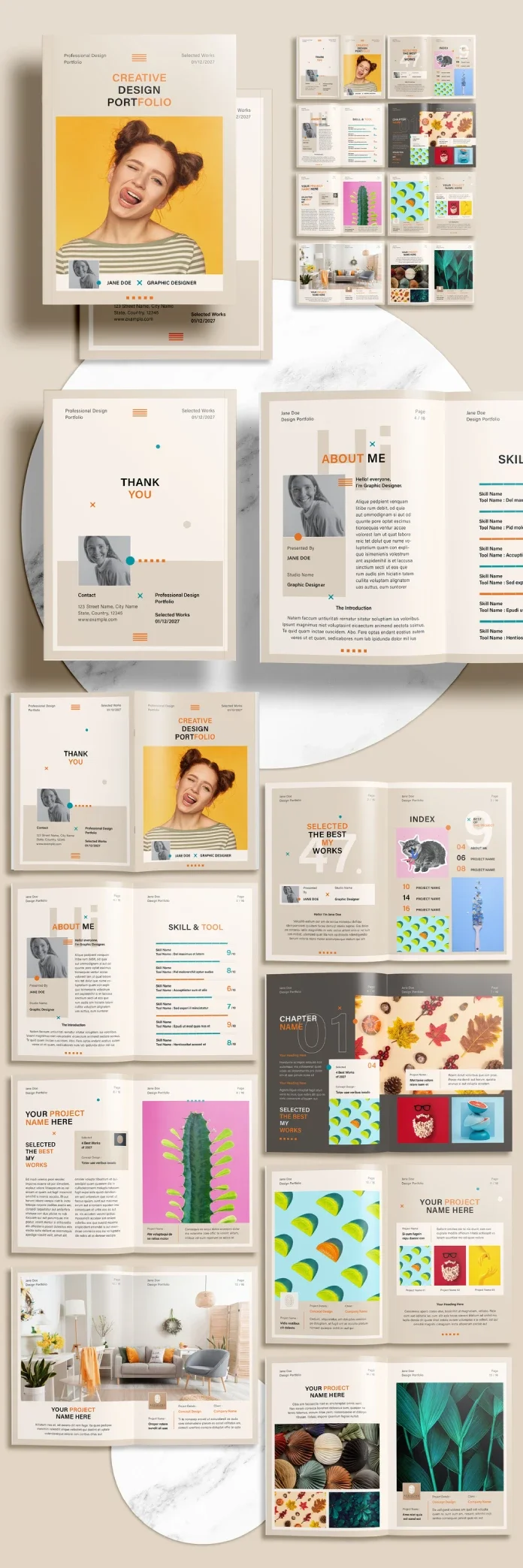
A print portfolio has to do more than hold good work. Its page sequence needs to give each project room, and its image frames must adapt when real artwork replaces tidy preview material. Sirisako’s 16-page InDesign brochure template, listed on Adobe Stock, offers a starting structure for that job. Its value depends on how well it handles your content.
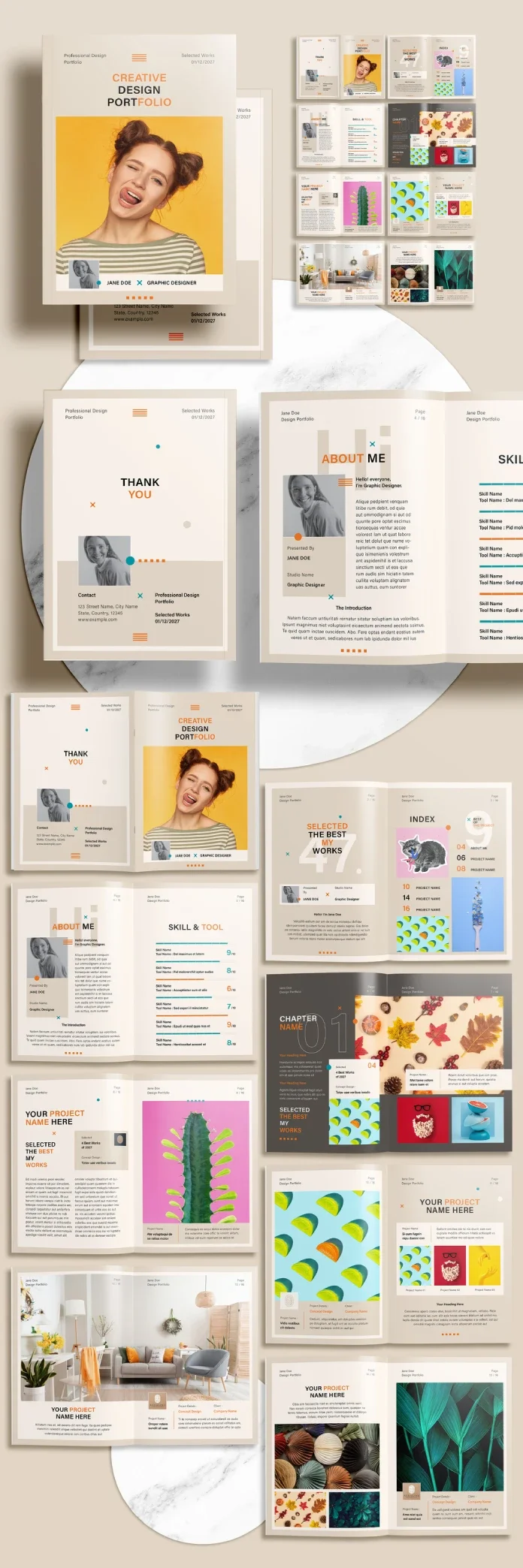
The template is aimed at designers who want a physical portfolio for a meeting or pitch. A printed piece can be passed around and left behind; a screen based portfolio remains better suited to motion, interface details and work that depends on interaction. For a print focused selection, the template’s prebuilt pages can reduce setup time, provided the layout doesn’t make replacing its sample content a chore.
What the Adobe Stock listing includes
The listing credits the template to Sirisako and specifies an INDT file, weighing 7.17 MB. It contains 16 customizable, predesigned pages, uses CMYK, and is intended for Adobe InDesign. The available page formats are US Letter, at 8.5 by 11 inches, and A4, at 210 by 297 millimeters. Adobe Stock identifies the license type as Plus; check Adobe’s current license terms before using the file on paid work.
INDT is InDesign’s template format. Opening the file creates a new document, which helps keep the original template intact. The relatively small download also reflects an important limitation: the photography in the listing’s previews is for display only and isn’t included. You’ll need to supply your own images.
Starting in CMYK suits a print workflow, but it doesn’t settle every production detail. Confirm the color and bleed requirements with your printer before exporting. Those settings can depend on the job and the printer’s specifications.
Plan the page sequence before filling it
Sixteen pages sounds generous until you map the sections. With a separate front and back cover, a facing page document has 14 interior pages, or seven interior spreads. Four projects using one spread each would leave three spreads for an introduction, contents, contact details or other supporting material.
That’s a tight edit, but a useful one. A compact brochure can keep attention on the strongest projects instead of making every piece compete for space. The key is variation: a run of image heavy spreads can tire the reader, while too many text led pages may flatten the pace. Alternate feature images with quieter layouts that let descriptions and details breathe.
Before you start replacing content, scan the page thumbnails in InDesign’s Pages panel. Look for repeated layouts and decide where a project needs a larger visual moment. A few recurring structures can give the document consistency; too many identical spreads may make different projects feel interchangeable.
Sixteen is also a practical count for saddle stitching. The process folds printed sheets and staples them along the spine, with each sheet contributing four pages. Adding a project may mean expanding the brochure to 20 pages. Work out the sequence first so the page count supports the stories you want to tell.
Test the template with your actual content
A polished preview can conceal how a layout behaves with images and text that don’t fit its frames. Before committing to the template, test a representative spread. Four quick checks reveal common trouble spots:
- Try an image with a different shape. Place a tall portrait in a wide frame. Review the crop and frame fitting options; the result should look intentional and keep the important subject visible.
- Stress test a text box. Paste in a long project description, around 200 words. Check for overset text and see whether the layout can accommodate the copy without awkward shrinking or broken spacing.
- Change a color swatch. Edit a color in the Swatches panel and inspect related elements. If the design uses shared swatches, connected elements should update together.
- Export a print PDF. Use the preset your printer requests, then confirm the bleed and color settings against its specifications.
Track how long it takes to replace one placeholder spread with a real project. That time gives you a useful measure of the template’s practical flexibility. If every image needs elaborate reframing or every caption requires manual repair, the initial setup may save less time than it appears to.
Prepare photography for full bleed pages
Because the preview images aren’t part of the download, your photography will shape the finished brochure’s appearance. The template can organize and frame the work, but it can’t improve a weak image. Gather the project images before settling on a page sequence, and check that their proportions suit the layouts you plan to use.
For a full bleed two page spread in US Letter, the source gives a finished size of 17 by 11 inches. With 0.125 inches of bleed on each outside edge, prepare an image measuring 17.25 by 11.25 inches. At 300 ppi, that works out to 5,175 by 3,375 pixels.
For an A4 spread, the source gives a finished size of 420 by 297 millimeters. Adding 3 millimeters of bleed on each outside edge brings the working dimensions to 426 by 303 millimeters. At 300 ppi, the stated image target is approximately 5,031 by 3,579 pixels. Verify the final setup with your printer, since its bleed requirements determine the export.
Who is this template suited to?
Freelance designers and small studios may find the format useful when they need a printed leave behind without building every page from scratch. Design students can also use the structure to edit their work into a concise physical portfolio. Start with the strongest projects, then allocate the remaining pages to context and contact information.
The template is a poor fit if your portfolio depends on interaction, animation or other screen based details. It also may not suit a project that needs more than 16 pages or expects included photography. The listing says the file requires Adobe InDesign, so it won’t serve as a ready to use layout in another application.
Specs at a glance
| Detail | Listing information |
|---|---|
| Contributor | Sirisako |
| Marketplace | Adobe Stock |
| File format | INDT |
| File size | 7.17 MB |
| Software | Adobe InDesign |
| Color mode | CMYK |
| Pages | 16 customizable, predesigned pages |
| Page sizes | US Letter and A4 |
| Preview photography | Display only; not included in the download |
| License type | Plus |
View Sirisako’s portfolio brochure template on Adobe Stock. Its strongest use is as a production shortcut for a focused print portfolio: check the page rhythm, test the frames with real work, and confirm print settings before the deadline.
| Rev | Description | Date |
|---|---|---|
| A | Issued for reading | |
| B | Viewed 802 times | Current |