Visual Hierarchy in UI Design: Type, Space, Color and Scale
- Project
- Graphic Design
- Drawn by
- Daria Tsehelna
- Issued
- Sheet
- A-176
A practical look at how type, scale, color, spacing and repetition guide attention across screens, components and interface details.
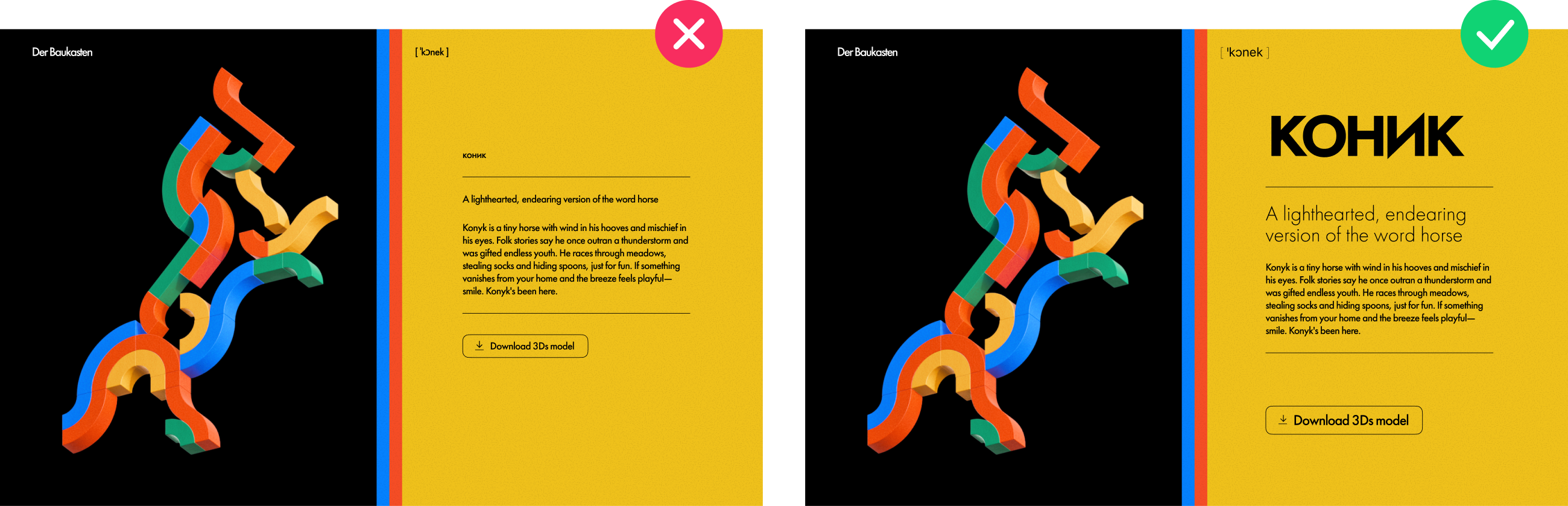
When every element on a screen asks for attention at once, people have to do the designer’s sorting work. Clear visual hierarchy removes that burden: it makes the next step easier to spot, shows which information belongs together and helps a page feel readable before anyone starts reading closely.
That work happens through ordinary design choices. Type size, spacing, color, contrast and component patterns all shape what stands out. A call to action can disappear when it carries the same visual weight as body copy; a form can become hard to parse when labels drift away from their fields. The useful question isn’t simply which element is largest. It’s how the relationships between elements direct attention.
Typography sets the reading order
People scan a screen before settling into its copy. Typographic patterns give that first scan a structure, signaling what the page is about, where a section begins and which details deserve closer attention.
A three-level type system is a useful starting point. Primary type covers headlines, hero text and key callouts. It helps orient people and establish the subject. Secondary type includes subheads and captions, which divide the page into useful waypoints. Tertiary type is the body copy: quieter, but essential to a comfortable reading experience.
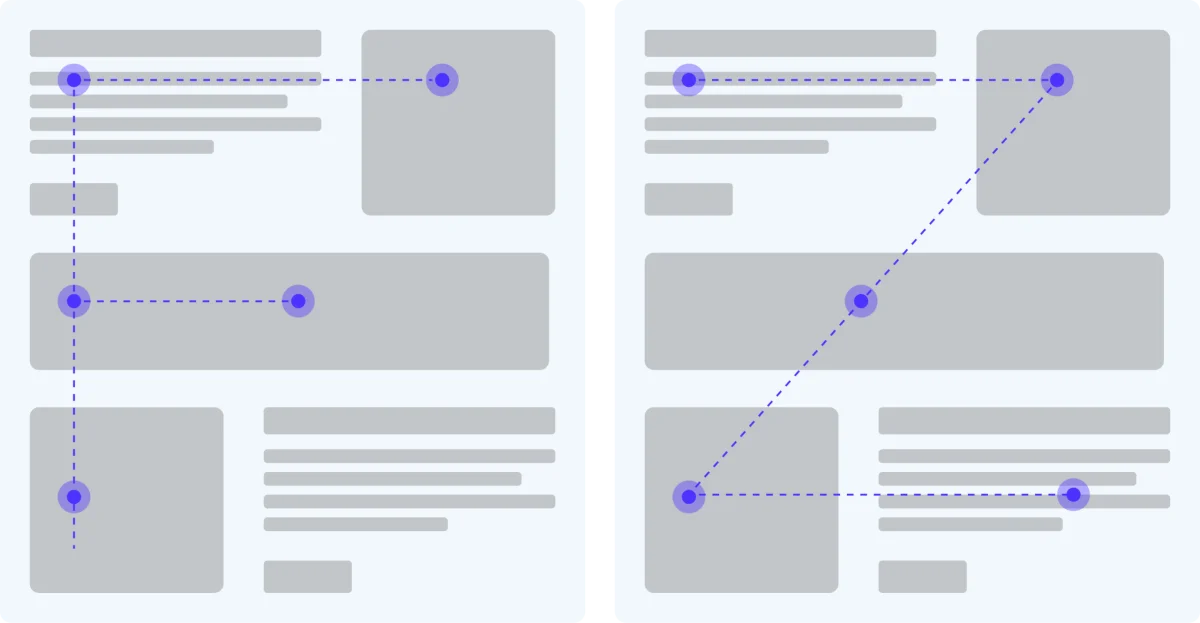
Eye-tracking research has described common F and Z scanning patterns on the web. The placement of subheads and other secondary elements can help people decide whether to continue through a page. But a clear headline and subhead system can’t make up for body text that’s cramped or hard to read. The smallest tier still needs enough contrast and breathing room to support sustained reading.
Hierarchy depends on more than font size. Weight, letter spacing, line height and color all affect how prominent text feels. A 48-pixel headline in a light weight may have less visual presence than a 24-pixel subhead in bold. The distinction comes from the contrast between levels, so judge them together in context.
Typeface pairing shapes that contrast, too. A distinctive geometric display face can give large headings a strong voice; a humanist serif or a well-spaced sans serif can keep body copy comfortable to read. The display style sets the tone, while the text face has to work over paragraphs and across different screen sizes.
On mobile screens, a compact system often makes more sense than carrying every desktop tier over unchanged. One confident heading style can handle both orientation and section breaks, with body text as a clearly separate second tier. The right number of levels depends on the screen and the task, not on a fixed template.
Use scale to rank importance
Size is one of the quickest ways to attract attention, but the same size difference won’t read equally well in every interface. In a spacious layout, a headline that’s roughly one and a half times the body size may stand apart clearly. In a dense dashboard, nearby charts, labels and controls add visual noise, so the difference may need to be stronger.
That’s why complex tools can use sharper jumps in scale than a more open consumer product. The surrounding density changes how much contrast a person perceives. Scale choices that feel too blunt in a quiet layout may be useful when users have to locate key information among many competing elements.
Size also affects how interactive an element feels. A primary button that is small beside nearby secondary actions can leave people uncertain about where to act. A clear difference in scale can make the intended action easier to find and more comfortable to use.
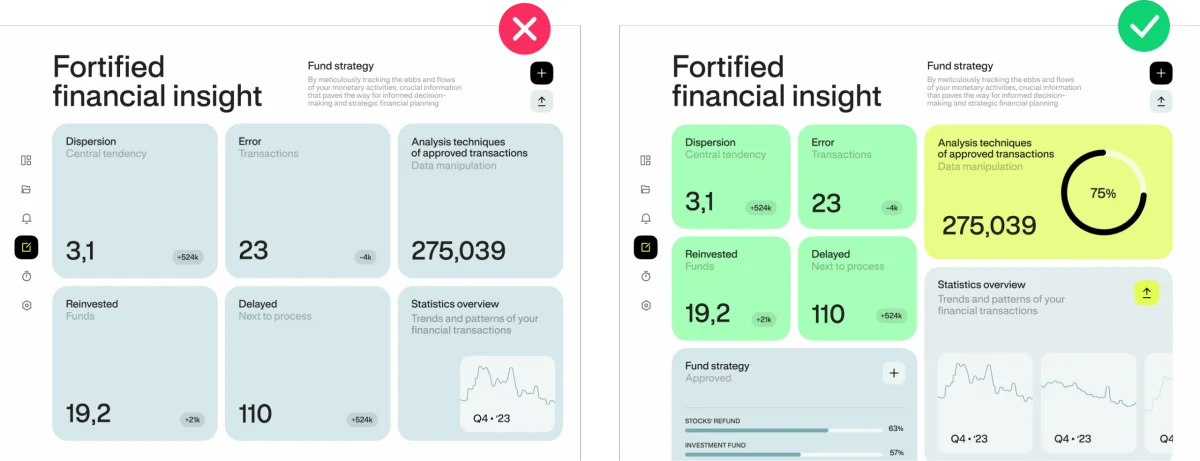
Before adjusting sizes, rank the content: what does someone need to see first, what helps explain it, and what can come later? That order gives the visual system a purpose. Without it, designers can end up giving everything medium emphasis. When all elements sit at the same level, none has a clear lead.
Reserve color and contrast for meaningful signals
Strong color attracts attention quickly. A vivid button against a neutral background may stand out even when it’s smaller than nearby elements. That makes color an efficient way to guide the eye, but its effect weakens when too many elements receive the same treatment. One bright accent can signal priority; repeated across the screen, it becomes background noise.
Contrast can come from more than hue. Thick and thin letterforms create a typographic distinction. Motion draws the eye against a still layout, so an animated element can quickly dominate its surroundings. An island of open space can make one item stand out from a dense group. Each of these choices changes emphasis without changing the color palette.
Color choices can also explain interface states. Error and success messages, active navigation and disabled controls all need clear, consistent visual cues. When a color appears reliably in the same role, people can learn its meaning and recognize it before reading a label. That only works if the system applies the cue consistently.
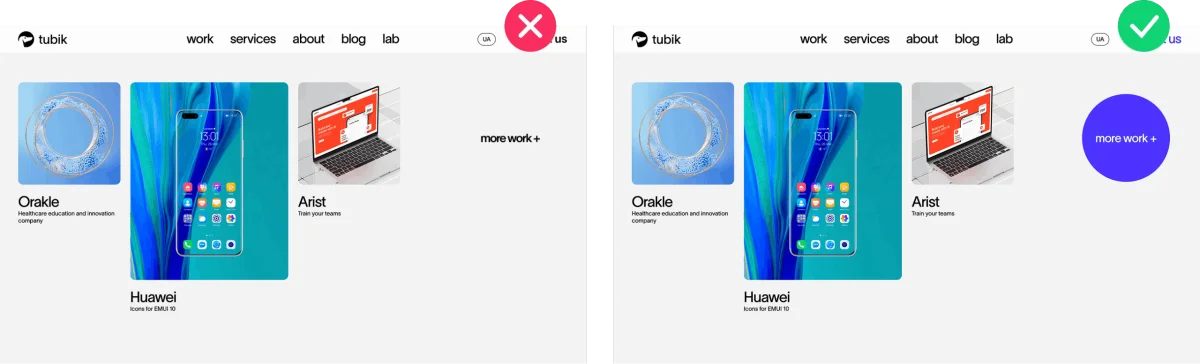
Contrast is therefore a system choice as much as a stylistic one. Decide which colors mark priority and which distinguish interface states, then apply those roles with care. Too many competing signals make it harder for people to tell emphasis from decoration.
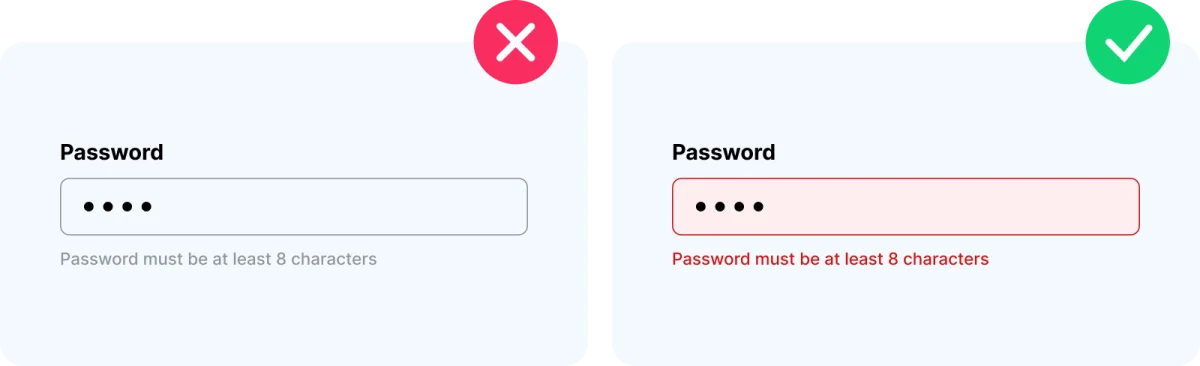
Give important elements room to register
Negative space is active structure. It separates groups, gives individual elements a clear visual boundary and lets the eye move through a layout without having to untangle every relationship.
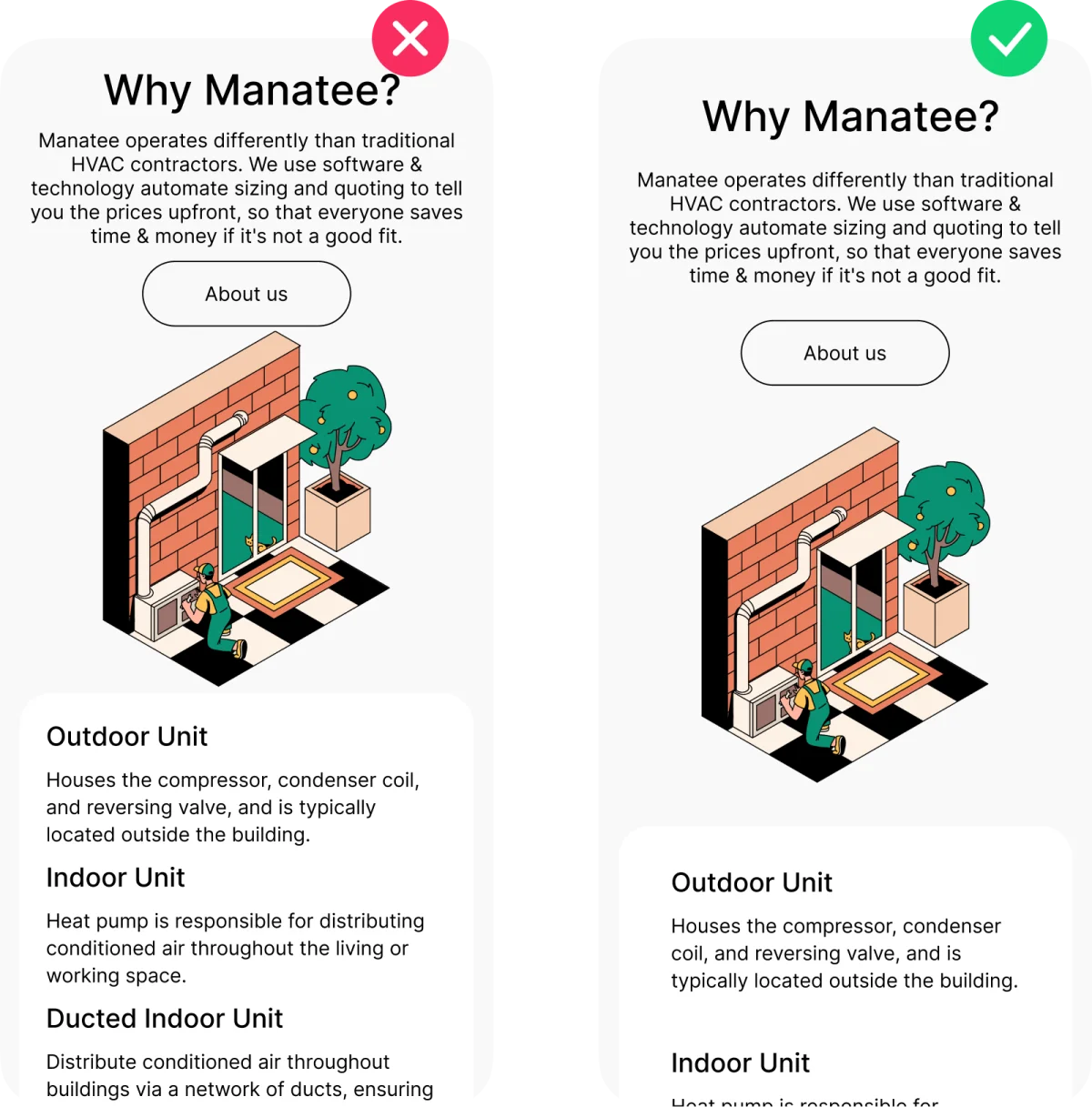
Space can also signal importance without changing an element’s size or color. A small control with generous room around it may feel more prominent than a larger control squeezed into a crowded header. That breathing room makes the element easier to identify as a distinct part of the interface.
In complex screens, reducing clutter helps in two ways: people have fewer individual items to parse, and fewer relationships between items to work out. Even small spacing adjustments can make a group of controls or information easier to scan. The aim isn’t empty space for its own sake; it’s enough separation to make the content’s structure legible.
Open layouts can also shape a product’s tone. Generous spacing may make a digital product feel calm and considered, while tighter spacing can support screens where people need to work through more information at once. The choice should reflect the content and task as well as the visual character the team wants to establish.
Examples from the Transform9 and Manatee Energy cases show how spacing can organize a composition:
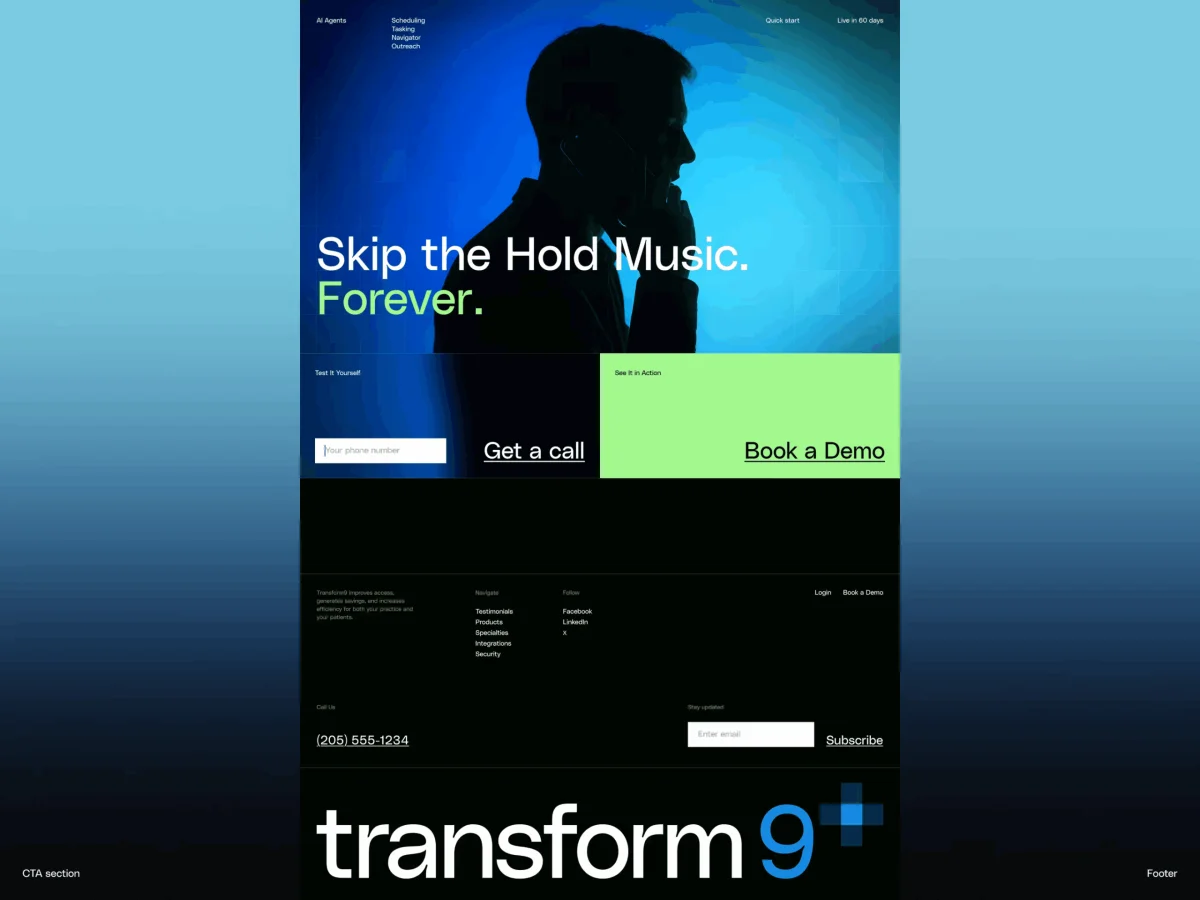

Use proximity and repetition to make groups clear
People tend to read nearby elements as related and separated elements as distinct. Designers can use that tendency to clarify navigation, forms and content groups without adding labels to explain every relationship.
A tightly grouped row of menu items reads as one navigation system. Spread the items unevenly and people have to work out whether they belong together. The same principle applies within components: a label close to a text field reads as its label, and a caption under an image reads as its description. Put more distance between them and the connection becomes less obvious.
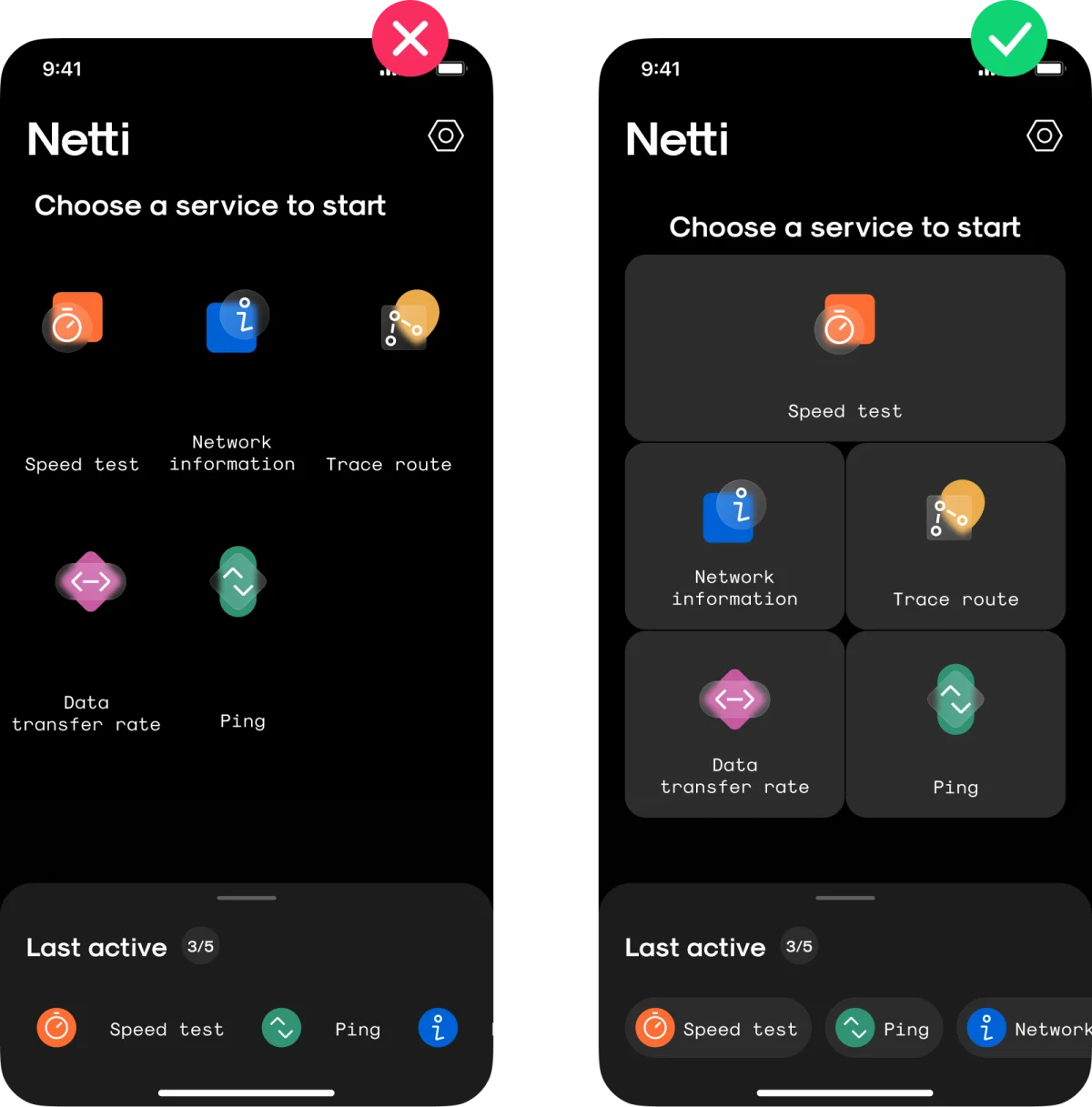
Repetition makes those relationships easier to learn over time. When the same card shape, icon weight or background treatment appears consistently, people can recognize what it signals. A familiar tag style, for example, can become recognizable through repeated use. That’s one reason consistency across shared components matters: each repeated pattern can teach people how to read the interface.
Check hierarchy at three scales
Visual hierarchy works across the screen, within components and between individual details. These scales need to support one another.
At the page or screen level, ask what should lead and what should support it. Within a card, form or modal, establish a smaller reading order that fits the screen’s main structure. A component with its own oversized headline may compete with the page heading instead of supporting it.
At the smallest scale, check details such as the relationship between a label and its value, the balance between a button’s icon and text, and the spacing between list items. Each choice may seem minor, but inconsistent details can make a product feel unresolved. Consistent patterns across all three scales help direct attention in the same direction, from the overall screen down to individual controls.
Clear hierarchy won’t make every interface beautiful, but it can make a product easier to scan, navigate and understand. Start by deciding what people need to notice, then use type, scale, contrast, space, proximity and repetition to support that order. The strongest systems make those choices feel like one coherent visual language.
Further reading
For related approaches to interface writing, readability, information architecture and Gestalt principles, see:
Tips on Applying Copy Content in User Interfaces
UX Design: How to Make User Interface Readable
Information Architecture. Basics for Designers
Information Architecture: Effective Techniques For Designers
| Rev | Description | Date |
|---|---|---|
| A | Issued for reading | |
| B | Viewed 559 times | Current |