10 UI Design Myths That Keep Teams from Solving Real User Problems
- Project
- UX & UI Design
- Drawn by
- Diana Krupa
- Issued
- Sheet
- A-171
From mobile layouts to white space, these ten design myths show why teams should test assumptions against how people actually use interfaces.
Many interface rules began as useful responses to a particular era, device or design problem. Their trouble starts when teams apply them as permanent laws. The result can be a polished screen that obscures a poor flow, a shorter journey that leaves people guessing, or a page crammed with features that make its main task harder.
These ten persistent myths share a common flaw: they substitute convention for evidence. A more useful practice is to ask what each decision does for the person using the product, then check that against real behavior.
Visual design has a job beyond looking good
Color, typography and spacing shape how people understand an interface. Color can establish a sense of trust before a user reads the copy; spacing groups related information and sets hierarchy; type affects whether text remains legible on a small screen, in poor light or when someone is tired. These are functional choices as much as aesthetic ones.
Consider a banking sign-up flow. A visually polished screen may still ask for too many details, fail to explain password requirements as someone types, or place the next-step button behind a mobile keyboard. Those choices add friction regardless of how current the palette looks. Good visual design directs attention through a workable flow; it can’t make a broken one function.
Color choices in UI design and visual hierarchy matter because they help people act, read and find what they need.
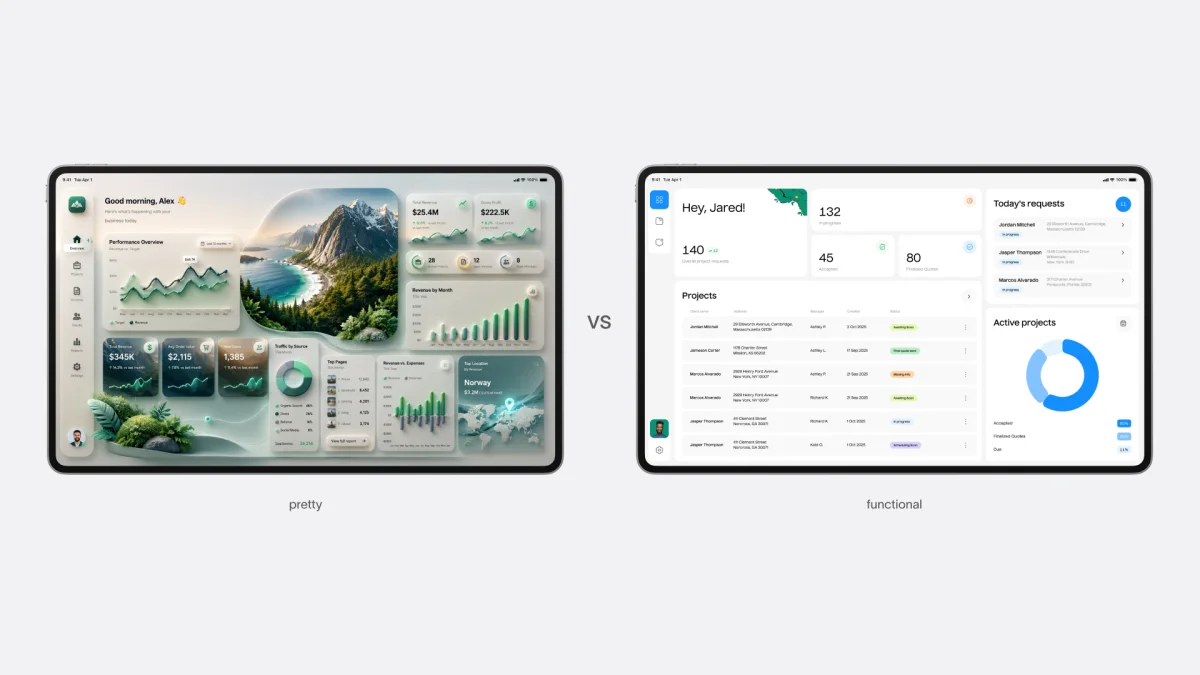
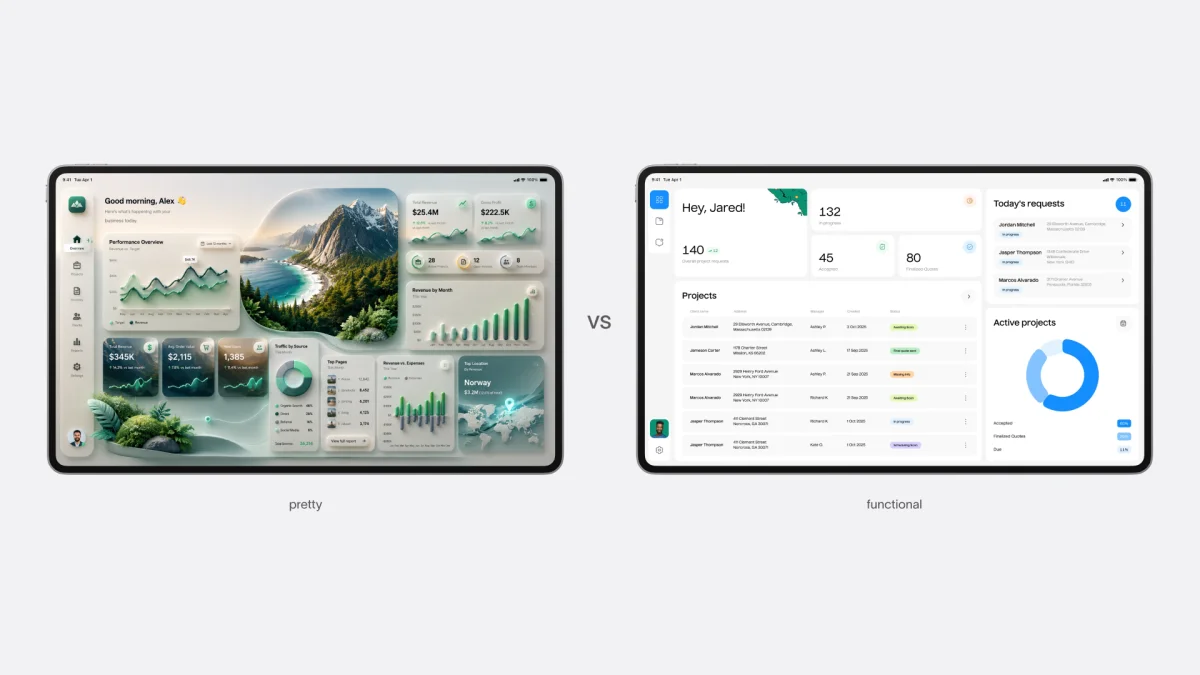
Contrast between decorative and functional interface
Strong concepts come from iteration
The picture of a designer waiting for sudden inspiration makes for a tidy story, but it doesn’t describe much of the work. Product design is closer to a process of testing: teams investigate user behavior, sketch options, observe people trying them and revise what fails.
A checkout redesign, for instance, might begin with drop-off data and a set of rough wireframes. Usability sessions can reveal which ideas confuse people before the team invests in detailed visual design. A promising direction often emerges through that cycle, rather than arriving as a finished answer. Tubik describes its Tubik Lab as a place to explore ideas without a client or deadline, a setting for experimentation outside delivery work.
Design for the phone’s context
A mobile interface is not simply a desktop layout squeezed into a narrower frame. People may use a phone one-handed, while standing or sharing attention with what’s happening around them. The screen size, input method and circumstances all change what feels easy.
Luke Wroblewski’s mobile-first principle puts those constraints at the start of the design process. Beginning with the smallest screen forces teams to prioritize content and actions, then expand the layout for larger displays. Features that don’t survive that first pass may need a clearer purpose.
Instagram launched as a mobile-only product in 2010 and didn’t add a full desktop experience until 2021. Its early focus shows how a product can establish its core experience within phone-sized constraints before broadening its reach.
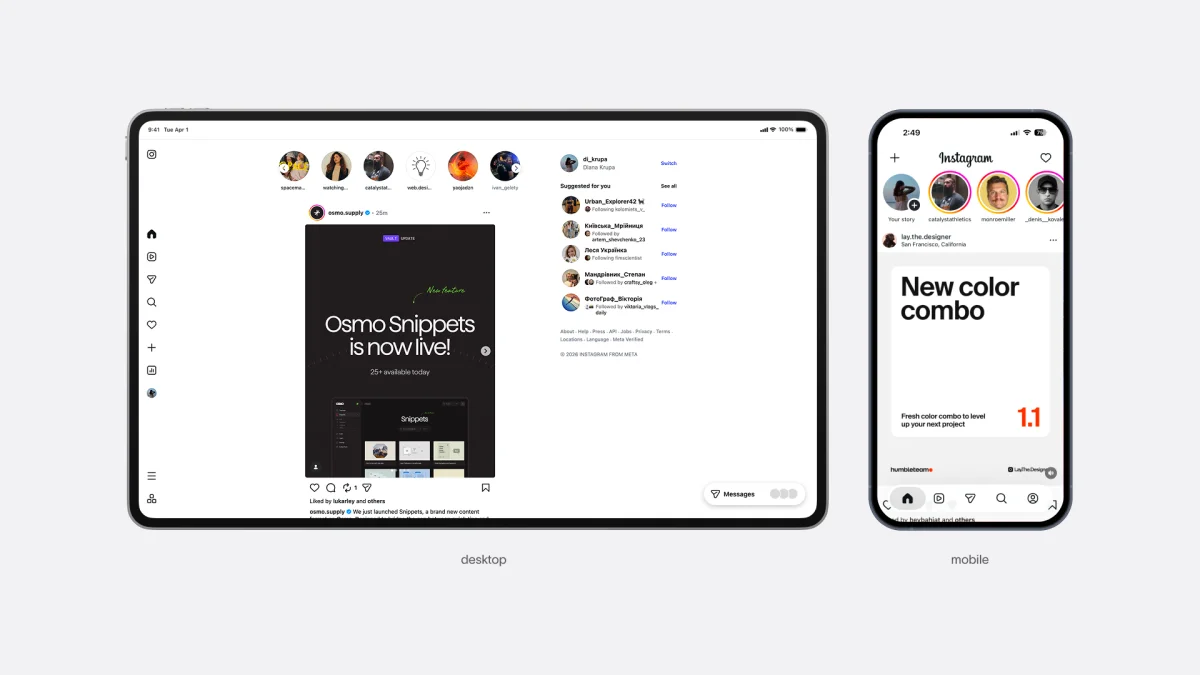
The differences between mobile and desktop layouts
Make journeys clear, not artificially short
The three-click rule says that people will abandon a site if they can’t reach a destination within three clicks. The guidance is often traced to a muddled version of older advice about navigation depth. In practice, click count alone tells a team little about whether a journey feels easy.
Uncertainty is the bigger obstacle. A five-step checkout with visible progress can feel more manageable than a compressed two-step form that gives no clue what happens next. Trying to reduce clicks at any cost can pack too many decisions onto one screen or conceal fields behind controls people may not notice.
Plan each step around a clear choice, show what comes next and confirm when an action has worked. A well-paced path can be longer and still feel easier to follow. For more on the principles behind that judgment, see web usability.
More features can make a product harder to use
Feature creep has an appealing logic: each addition seems to show value to a client, support a stakeholder request or create a new demo moment. But features accumulate in the same interface, where they compete for attention and make the main task harder to find.
By the mid-2000s, Microsoft Word’s many nested menus had made everyday tools difficult for some users to discover. Microsoft responded with the Ribbon, a redesigned navigation system intended to expose tools more clearly. Google Docs took a simpler early approach, centering on writing, formatting and real-time sharing. The comparison illustrates a useful design question: what does the user need to accomplish, and which features help them do it?
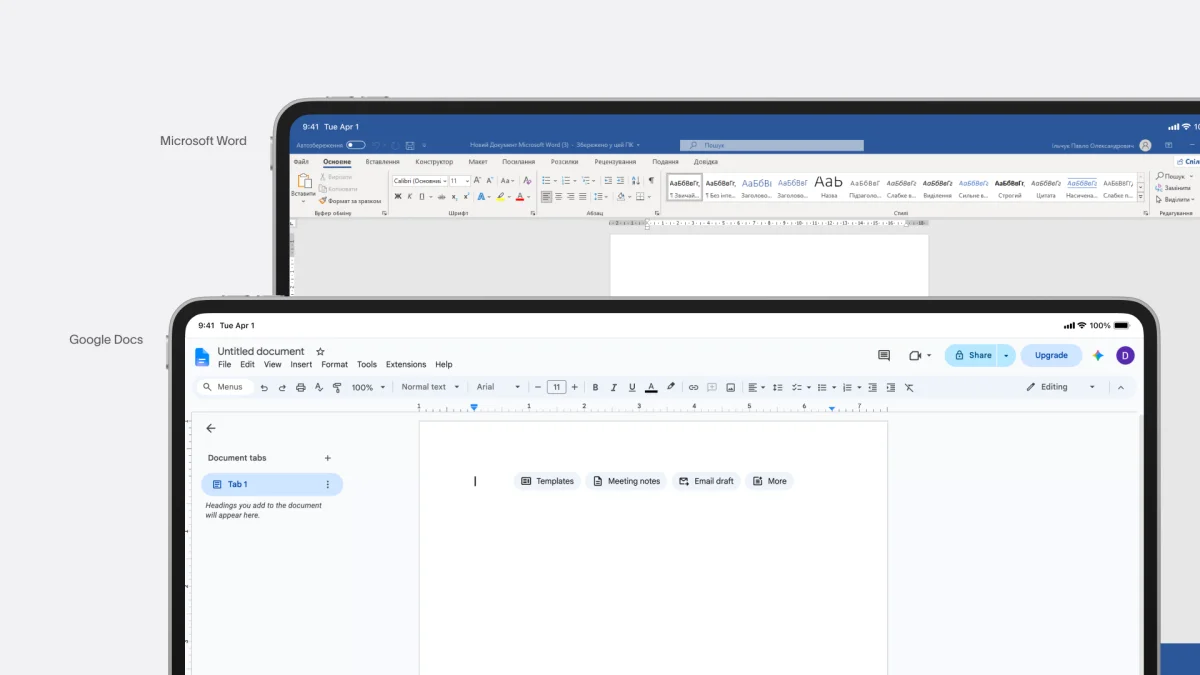
MS Word and Google Docs: differences in their layouts
Write for scanning, with the key information in view
Interface copy often gets treated as though people will read every line in order. Many users scan instead, looking for headings, keywords and actions that match their immediate need. Research from the Nielsen Norman Group described the F-shaped reading pattern in 1997: attention tends to concentrate near the top of a page and along its left side.
That behavior changes how a screen should be organized. If the key instruction sits halfway through a dense paragraph, a scanning reader may miss it. Strong headings, short blocks and plainly labeled actions make important information easier to locate. Interface copy should answer a question or clarify a decision; extra text can bury the point.
The source points to the Key Information Document as an example of scannable financial information, and links to an overview of the Key Information Document. The design lesson is broader: giving people a document to read doesn’t mean they’ll find what they need in it.
Designing scannable interfaces starts with the content structure, not just the words themselves.
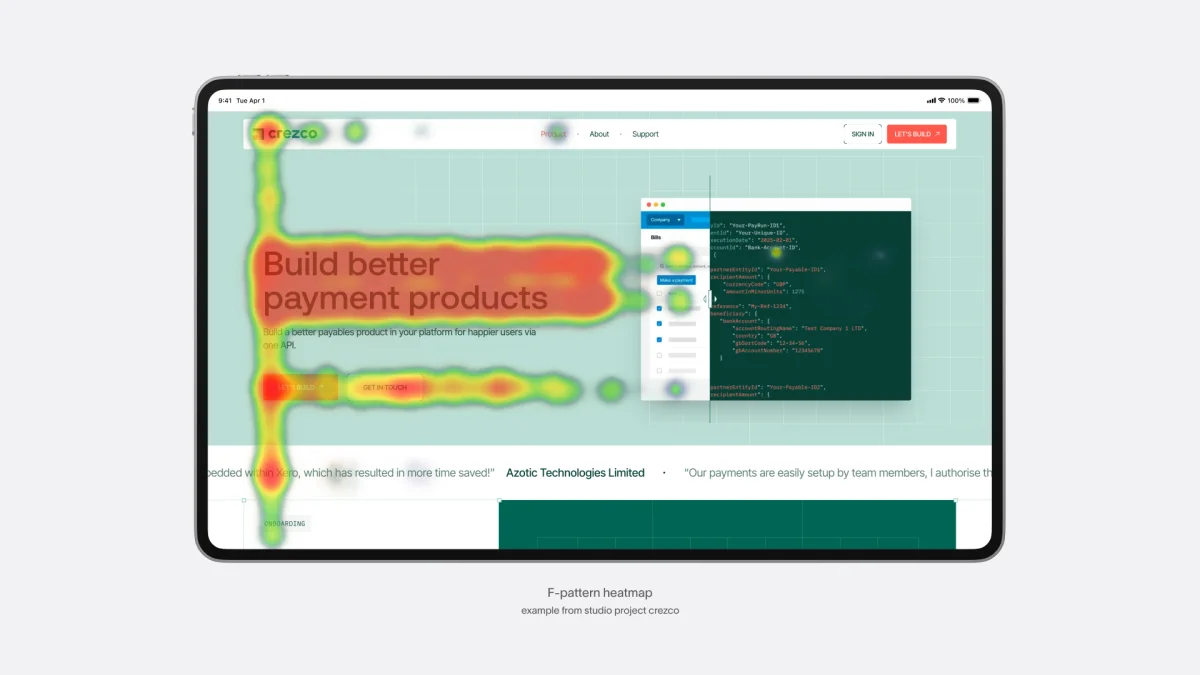
F-pattern heatmap example
Use motion to explain interface changes
Motion can answer small but important questions: did the action register, where did that panel go, and is the screen loading? When a heart icon briefly grows and settles after a tap, the change gives the user visible confirmation. Without it, the action may still work, but its result can feel less certain.
That doesn’t make every animation useful. Decorative movement can distract, slow interaction or create discomfort for people with vestibular sensitivities. A reduce-motion option supports those users, while restrained transitions can still clarify changes for others. Treat motion as part of the interaction design, with a specific job and a clear way to limit it. The source offers further examples in its piece on web animation.
Give people a reason to scroll
“Above the fold” comes from print: it describes the part of a folded newspaper visible on a newsstand. Early web designers borrowed the phrase amid concerns that users wouldn’t scroll. Digital behavior has made that assumption less useful, but the top of a page still carries particular weight.
Nielsen Norman Group research cited in the source found that users spend about 57% of their page-viewing time above the fold and 74% within the first two screenfuls. The article compares that with 80% of attention above the fold in 2010. People scroll readily, but attention remains concentrated near the opening of a page.
That makes the first screen an invitation rather than a container for everything. Apple’s long product pages use successive sections, visual pacing and scroll-triggered motion to present ideas in sequence. A long page works when each section gives people a reason to continue. The design task is to make the next scroll feel worthwhile, not to force the entire pitch into the opening screen.
Apple’s scroll-based animation
A redesign can’t repair a faulty core product
When retention falls or revenue misses expectations, a visual refresh can look like an obvious fix. But design can make an existing product’s value easier to understand; it can’t create value where the underlying service fails.
An international delivery app that miscalculates customs fees or regularly loses invoice data has operational problems no interface can hide for long. A cleaner layout, better touch targets and smoother onboarding may improve individual interactions, yet users still face the same unreliable service. Before commissioning a redesign, teams should identify whether the problem lies in presentation, the task flow or the product’s core performance.
White space is part of the structure
Space between elements isn’t wasted room reserved for premium brands. It helps users see which labels belong to which fields, distinguish one group of content from another and spot the primary action. When everything sits close together, people have to work harder to interpret the layout.
Line height, indentation and spacing between blocks can support faster form completion and reduce errors by making relationships easier to read. Those choices do not need to make an interface feel luxurious. They need to make its structure clear. White space is a deliberate part of the layout, just like a column, divider or heading.
More on the practical use of negative space and the relationship between aesthetics and usability can help teams make those decisions with intent.
Test the rule against the person using the product
These myths didn’t all begin as bad advice. Above-the-fold thinking suited a print metaphor; the three-click rule grew from guidance about navigation depth; desktop-first reflected a time before smartphones shaped everyday product use. Each idea outlasted the conditions that made it sensible.
That pattern is a reminder to treat design rules as hypotheses. Check them against user behavior, research and the device in someone’s hand. The useful question in a review is not whether a familiar rule has been followed; it’s whether the interface helps people understand what’s happening and complete their task. Tubik’s overview of psychology in design offers a related starting point for understanding user behavior.
| Rev | Description | Date |
|---|---|---|
| A | Issued for reading | |
| B | Viewed 987 times | Current |